
Account and keys
Export a wallet key or sign a statement
Every position wallet is an ordinary Solana wallet. You can open one in Phantom with its key, or prove you own it with a signed statement that reveals nothing else.
This page is in English.
On this page
Export one wallet's key
Why you might: to see or move that wallet's tokens in Phantom or another wallet app, without WiSP. For example, to reach tokens someone sent to the wallet that WiSP cannot sell.
- Open Keys (under More). Under Wallet keys, find the wallet. Each row shows its short address, status and SOL.
- Tap Show key.
- Read the warning, type your account password and tap Show key.
- Tap Copy, paste the key into your wallet app, then tap Close and forget.
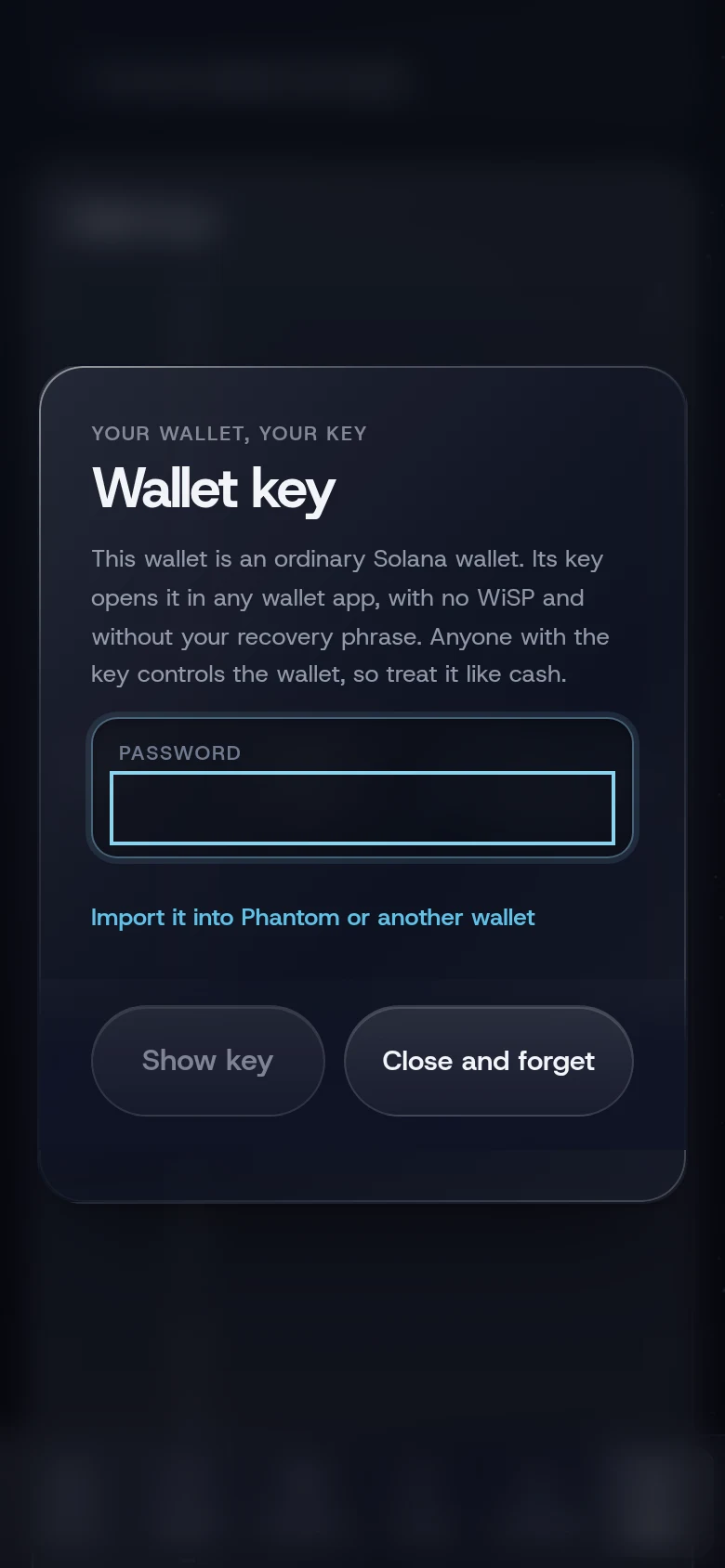
The sheet warns: "This wallet is an ordinary Solana wallet. Its key opens it in any wallet app, with no WiSP and without your recovery phrase. Anyone with the key controls the wallet, so treat it like cash."
In Phantom, open the menu, then Add / Connect Wallet, then Import Private Key, and paste. Solflare and Backpack have the same option. Use a wallet app or profile that does not hold your main wallet: wallet apps report every account they hold to their own servers, which would put this wallet next to your main one.
You can also open the same sheet from Positions: expand the position and tap Export this wallet key.
WiSP keeps managing the wallet after an export. If you move its funds in another app, press Refresh on Home so the balance is read again, as the sheet's tip says.
Sign a statement
A statement proves that you control one wallet, without revealing your other wallets, your deposit or your phrase.
- On Keys, under Wallet keys, tap Sign a statement next to the wallet.
- Under Statement, keep "I control this wallet." or write your own, up to 1,000 characters.
- Type your password and tap Sign.
- Tap Copy and send the result to whoever asked.
The toast reads, for example, Signed by wallet 2. Share the whole block; nothing else is needed to check it.
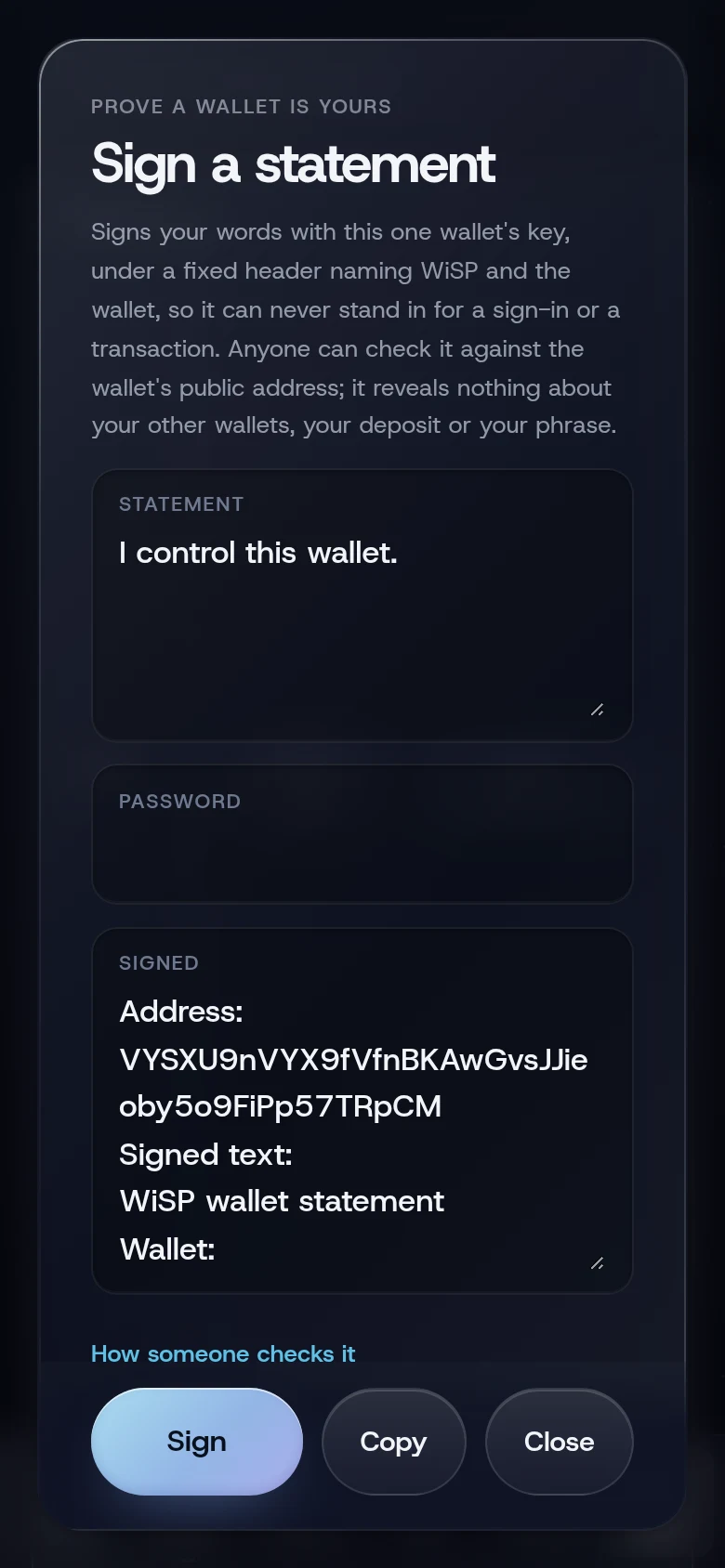
The result looks like this:
Address: <the wallet's address>
Signed text:
WiSP wallet statement
Wallet: <the wallet's address>

I control this wallet.
Signature: <base58 signature>
The fixed header "WiSP wallet statement" and the wallet line are part of what is signed, so a statement can never be used as a sign-in or a transaction.
How someone checks a statement
The signature is ed25519 over the exact signed text, as UTF-8: the header line, the wallet line, the blank line and your words. Any Solana library can check it. The sheet's tip How someone checks it gives the one-line form, nacl.sign.detached.verify(new TextEncoder().encode(text), bs58.decode(signature), bs58.decode(address)). With tweetnacl and bs58 in JavaScript:
const ok = nacl.sign.detached.verify(
  new TextEncoder().encode(signedText),
  bs58.decode(signature),
  bs58.decode(address)
);
signedText is everything between Signed text: and Signature:, without the line breaks at either end. Change one character and the check fails.
If something goes wrong
- "Wrong password". Type the account password again.
- "Write a statement of up to 1,000 characters". Shorten it, and remove any unusual control characters.
More on When something goes wrong.
Related
Last checked against the app: 24 October 2026, build bf09a3f