
Account and keys
Unlock, lock and the access notice
Unlock with your password, lock when you step away, and decide which network reads the app may make.
This page is in English.
Unlock
- Open the app. The welcome screen shows one password field and the LOCKED badge.
- Type your password and tap Unlock.
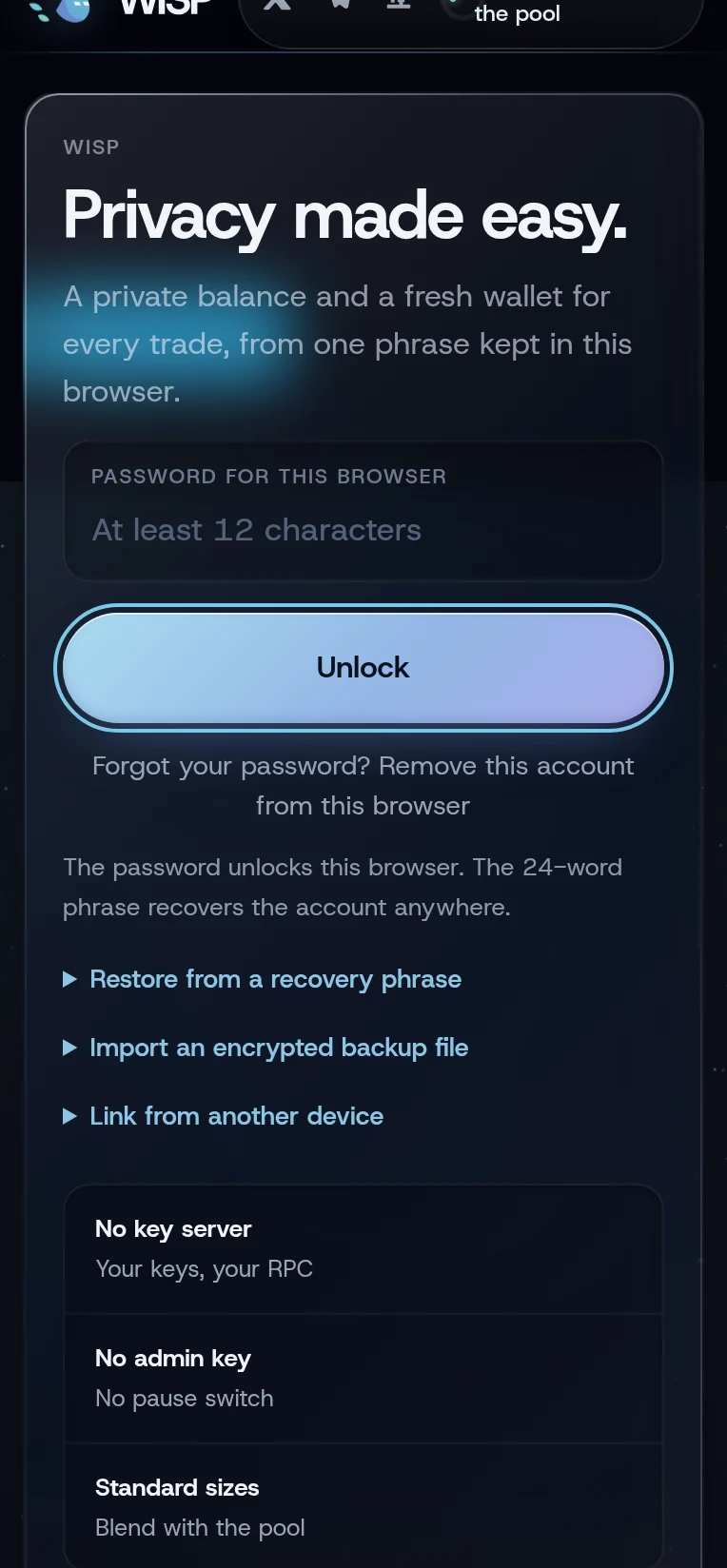
The toast reads Unlocked. and your balances are read. If you have not allowed network reads yet, it reads Unlocked. Accept the access notice to read balances.
Lock
Tap Lock, either on Keys or under More in the menu. The page reloads. The keys and the password leave memory; the encrypted account stays in this browser.
The app does not lock by itself after a while. Lock it, or close the tab, when you step away from a shared computer.
The access notice
Before the app reads your balances or contacts any outside service, it shows Five services, on your behalf. It names each service and what that service sees:
- "The pool, to shield, fund and rebuild your balance."
- "The Solana RPC you choose, to read balances and simulate trades."
- Jupiter, for tokens that trade outside pump.fun, and for token prices.
- "NEAR Intents (1Click), only when you arrive from or leave to another chain"
- "WiSP's own app host", which serves the page, the $WiSP fee-tier price, token names and the invite service, and "holds no key of yours."
It closes with: "Each sees your IP." Tap Allow network reads to go on.
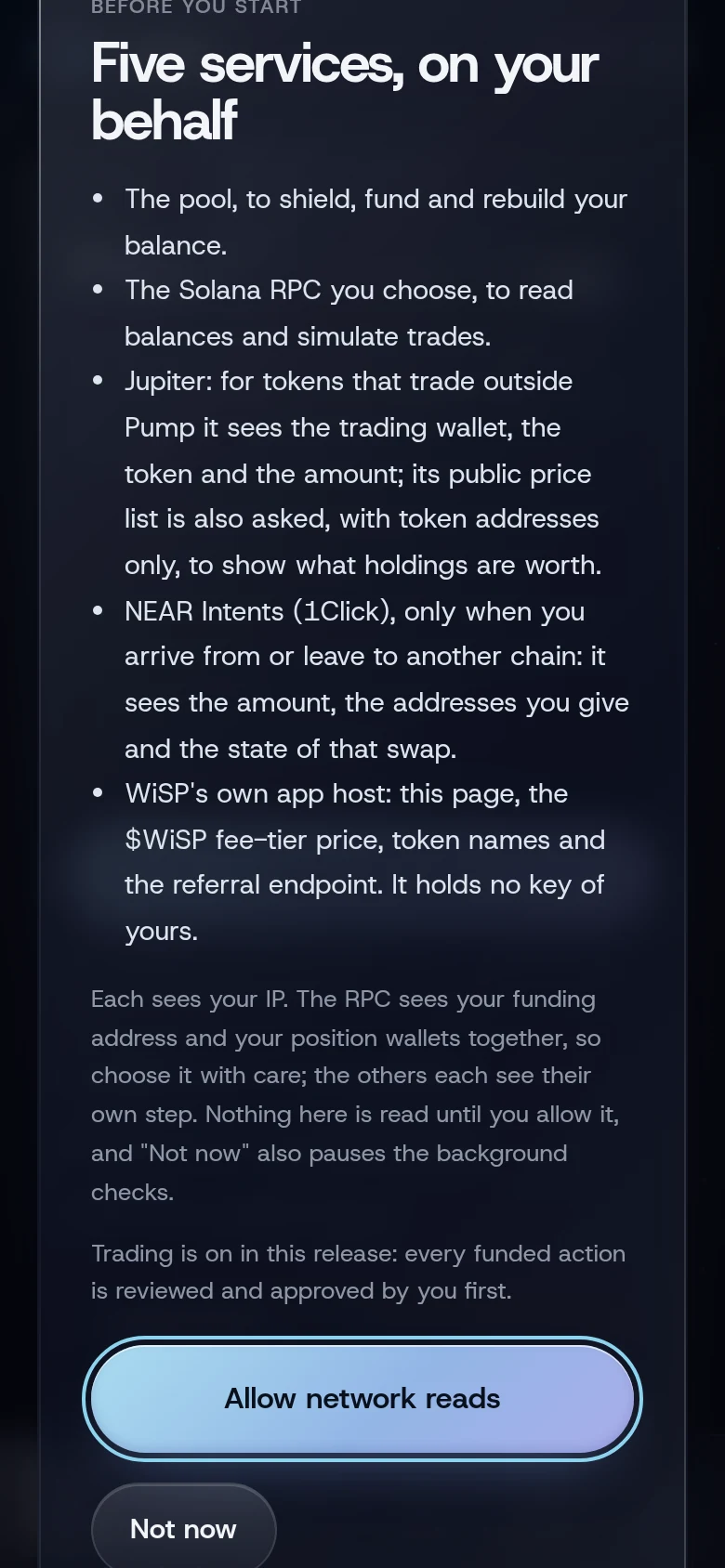
Not now keeps reads for your account off, background checks included: balances, quotes, trades and every outside service wait until you allow them. The page itself still comes from WiSP's host, with its token list and the terminal's public data. You can still create an account. Any read button opens the notice again.
The choice is stored in this browser, not in your account. To see the notice again, open Privacy, then Your RPC, and tap Show it again.
Forgot your password
There is no reset. You can remove the account from this browser and bring it back from your recovery phrase:
- On the welcome screen, tap Forgot your password? Remove this account from this browser.
- Tap it again when it reads Tap again to remove it. Only its 24-word recovery phrase can bring this account back.
- Restore from a recovery phrase opens. Follow Back up and restore with a new password.
Anything that was waiting for an answer from the chain when you removed the account is not in the phrase. Refresh and let pending work finish first if you can.
If something goes wrong
- "Wrong password or damaged backup". Check the password; it is case-sensitive.
- "Another WiSP tab is active. Close it and reload." The app runs in one tab at a time.
- "Unlocked. Balances could not be read: …" Your RPC did not answer. Tap refresh on Home, or choose another RPC.
More on When something goes wrong.
Related
Last checked against the app: 24 October 2026, build bf09a3f