
Money in and out
Shield SOL
Move SOL from your wallet, or from your funding address, into your private balance. Trades are paid for from there.
This page is in English.
On this page
Steps
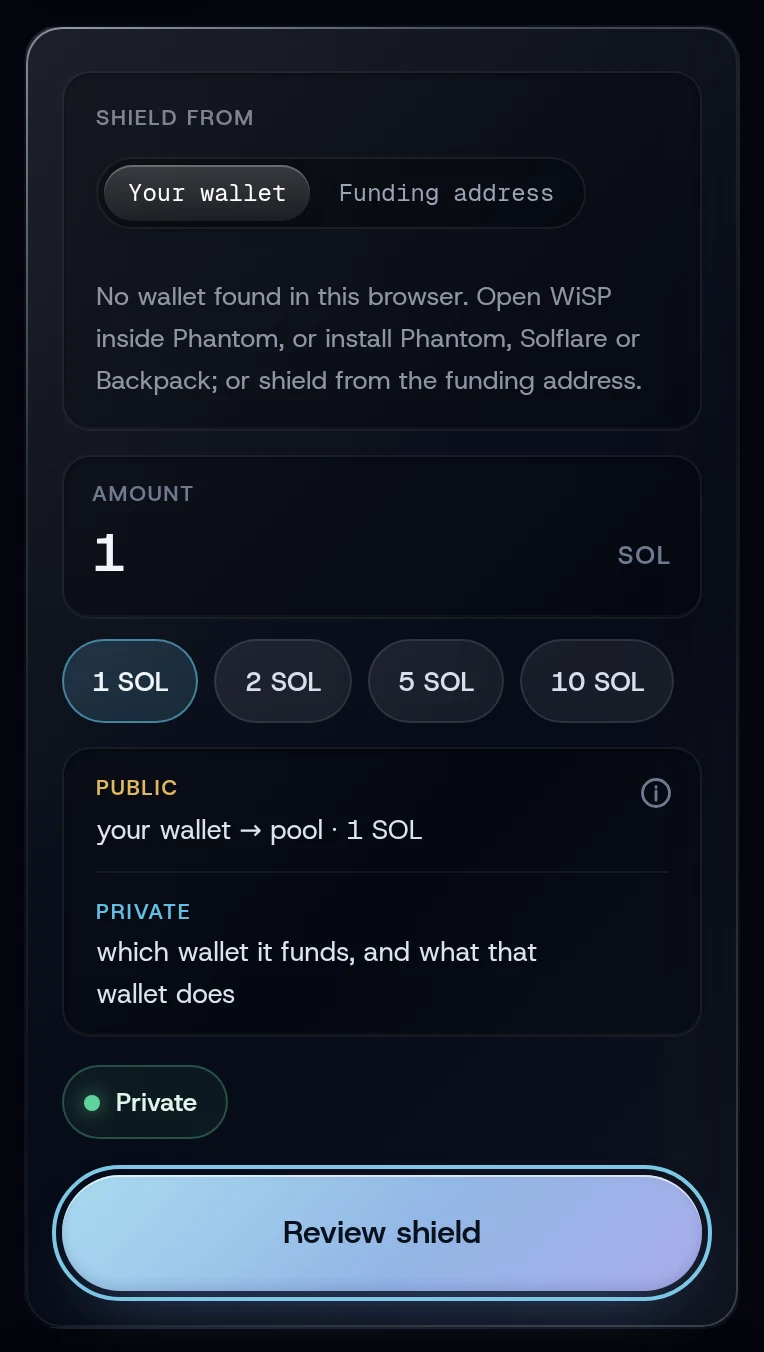
- Open Shield. The Shield tab is selected.
- Under Shield from, choose Your wallet or Funding address.
- With Your wallet, tap Connect next to your wallet and approve the connection in it. The row then shows the wallet's address and a Disconnect button.
- Tap 1 SOL, 2 SOL, 5 SOL or 10 SOL, or type an amount. These four are the most common deposits into the pool, so they blend in best. The least you can shield is 0.01 SOL; to trade, you need at least 0.5 SOL.
- Tap Review shield.
- Check the sheet and tap Approve and send.
- With Your wallet, your wallet asks you to approve the deposit. Approve it within about a minute.
The first shield on a device downloads about 13 MB of proving files. Building the proof on your device is the slowest step, so keep the screen open while the bar reads Building the privacy proof….
The review sheet
| Row | What it tells you |
|---|---|
| Into the pool | The amount that will reach your private balance |
| From | Your wallet or your funding address, in full |
| Signed in | Where you sign: your wallet, or this app for the funding address |
| Cost, all fees included | The network cost, taken from the simulation of this exact transaction |
| Your wallet may add a priority fee of up to | 0.002 SOL. Shown when you shield from a wallet |
| Most it can cost | The cost plus that 0.002 SOL |
Phantom and some other wallets add their own safety checks and their own priority fee to the transaction before you approve it. WiSP accepts that, within limits: up to four read-only checks and at most 0.002 SOL of extra fee. Anything more is refused.
What you will see
The toast reads Shielded with the transaction's short signature, and Home shows the new private balance. Under the default profile, Private · Instant, you can fund a wallet right away. On slower profiles the shield tip on this screen says when funding opens, for example "5 to 15 minutes" after each deposit.
Shield from the funding address
Your funding address belongs to your account. Use it to receive SOL from an exchange or from another chain, then shield it from inside the app. Choose Funding address under Shield from; the screen shows the address with a copy button and its balance. The deposit is signed by the app, so no wallet prompt appears. The address must hold the amount plus 0.0025 SOL.
If something goes wrong
- "Connect your wallet first, or shield from the funding address."
- "No wallet found in this browser." Open WiSP inside Phantom's browser, or install a wallet extension, or use the funding address.
- "Wallet does not hold the amount plus fees". Keep about 0.005 SOL more than you shield.
- "Your wallet declined the last deposit. Its notes stay reserved until the chain shows nothing landed, about two minutes; then try again".
- "Wallet raised the priority fee beyond the approved network-fee limit". Your wallet added more than 0.002 SOL of fee. Lower its priority setting and try again.
More on When something goes wrong.
Related
Last checked against the app: 24 October 2026, build bf09a3f