
Account and keys
Create an account
Choose a password for this browser, save your 24-word recovery phrase and prove you saved it. The phrase is the account; the password only opens it here.
This page is in English.
On this page
Steps
- Open app.usewisp.trade. If the access notice appears, see Unlock, lock and the access notice.
- Under Password for this browser, type a password of at least 12 characters. Type it again under Type it again.
Tap Create account.
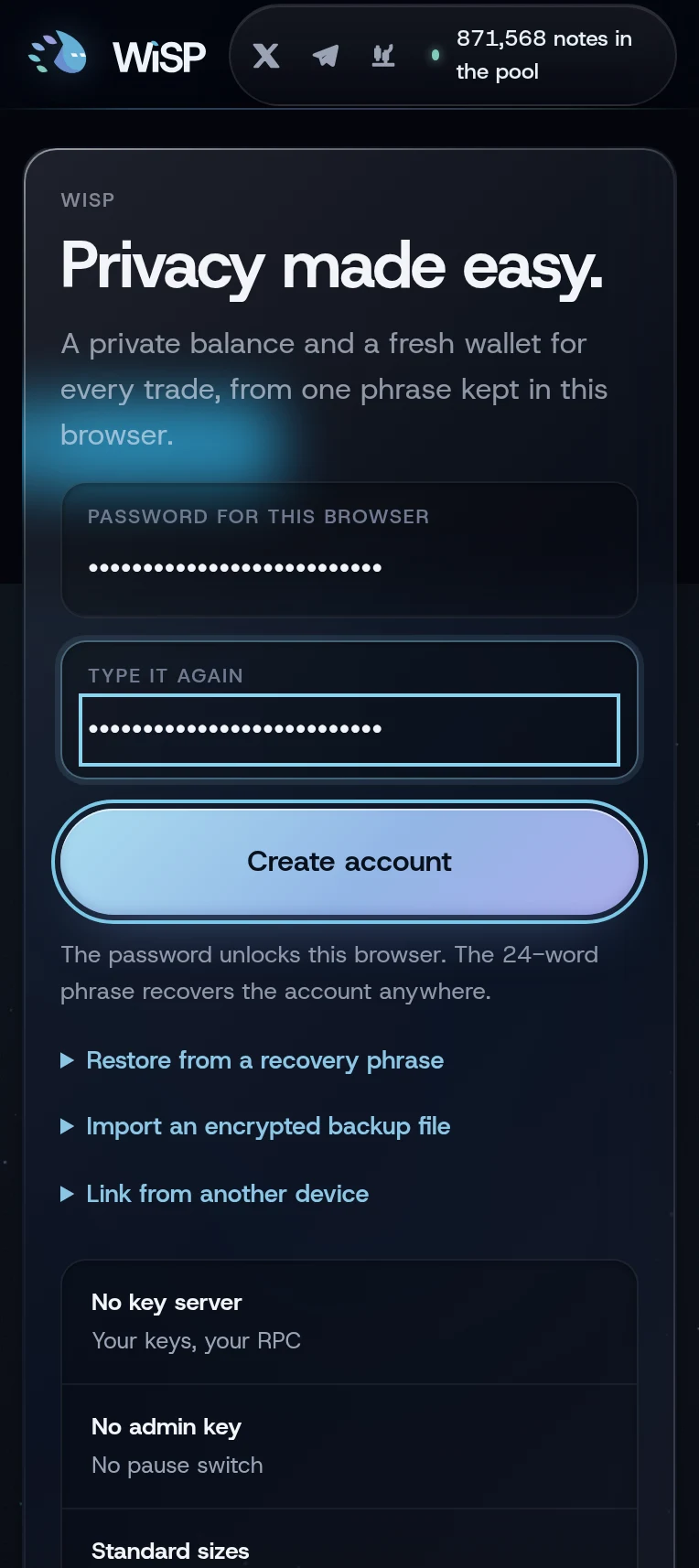
The heading changes to Save your recovery phrase. Write the 24 words down, or tap Copy phrase and paste them into your password manager. The page tries to clear the clipboard after a minute.
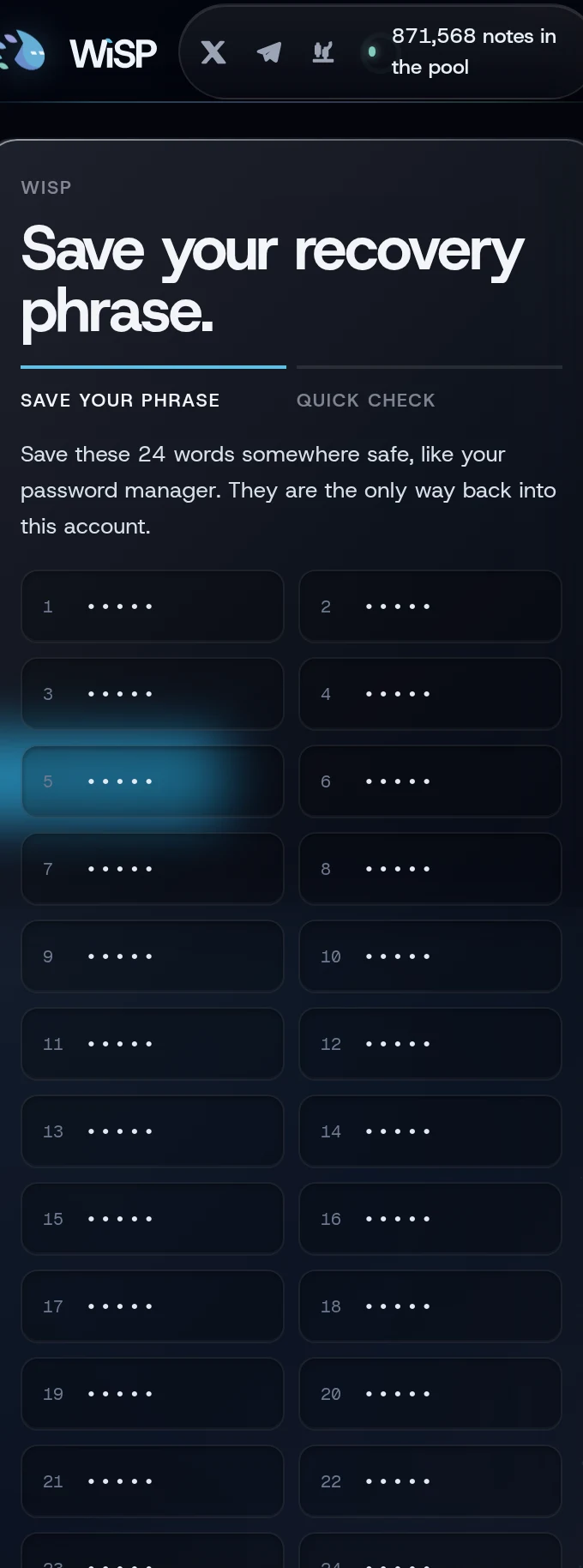
The words are hidden in this picture. Yours will show in full. - Tap I saved it.
On Quick check, tap the first word of your phrase, then the last. The tiles show First and Last as you tap. Tap Confirm.
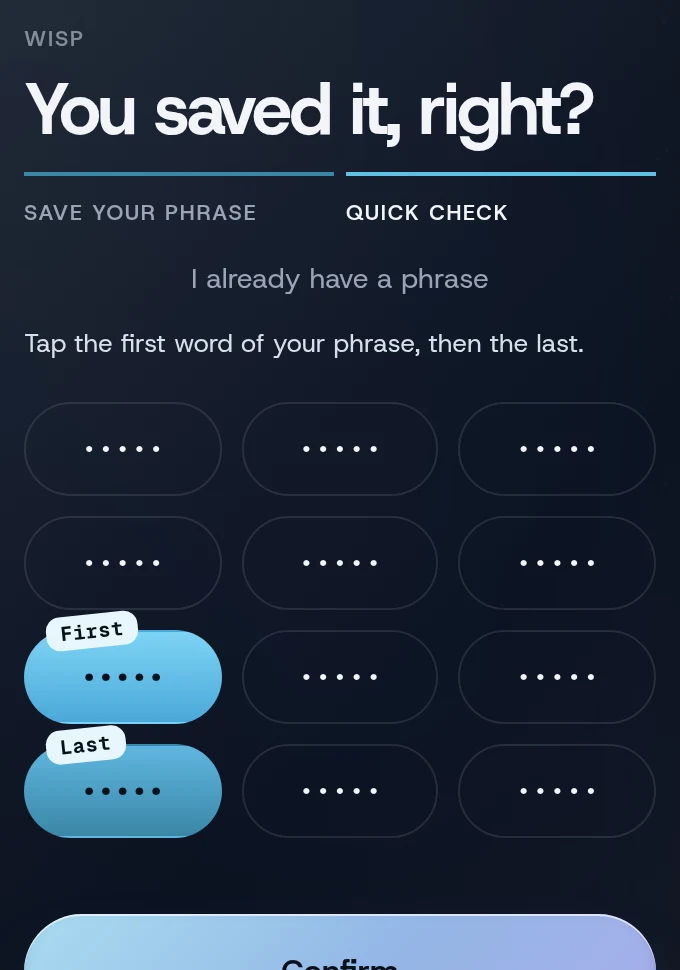
Twelve tiles: your first word, your last word and ten others from the phrase.
What you will see
The toast reads Phrase confirmed. You are in. and Home opens on your empty account. From now on the phrase is not shown again.
If the page reloads before you confirm, the next unlock brings back the same phrase with a new set of tiles, under Finish saving your recovery phrase.
The password and the phrase
| Password | Recovery phrase | |
|---|---|---|
| What it does | Opens the account in this browser | Rebuilds the whole account on any device |
| Where it lives | Only in your head | Only where you saved it |
| If you lose it | Remove the account from this browser and restore from the phrase | Nothing brings the account back |
| Can it be changed | No. To get a new password, restore from the phrase with a new one | No |
The password encrypts the account in this browser with PBKDF2-SHA256 (310,000 rounds) and AES-GCM. There is no reset, and there is no limit on tries, so pick one that is long.
Changed your mind? Discard the new account
If you meant to restore an account you already have, tap I already have a phrase on the phrase step, then tap it again when it reads Tap again to discard this new account and restore yours. The new account is removed and Restore from a recovery phrase opens. This works only for an account that was never used and whose phrase check was not confirmed.
If something goes wrong
- "Choose a password of at least 12 characters." Make it longer.
- "The two passwords are not the same. Type them again."
- "Those are not the first and last words of your phrase". The tiles reset. Tap Back to my phrase to look again.
- "This browser cannot store an account durably (storage is blocked, as in some private windows). Use a normal window."
- "An account already exists in this browser." Unlock it, or use another browser profile.
More on When something goes wrong.
Related
Last checked against the app: 24 October 2026, build bf09a3f